


Add your QA employee to Jira
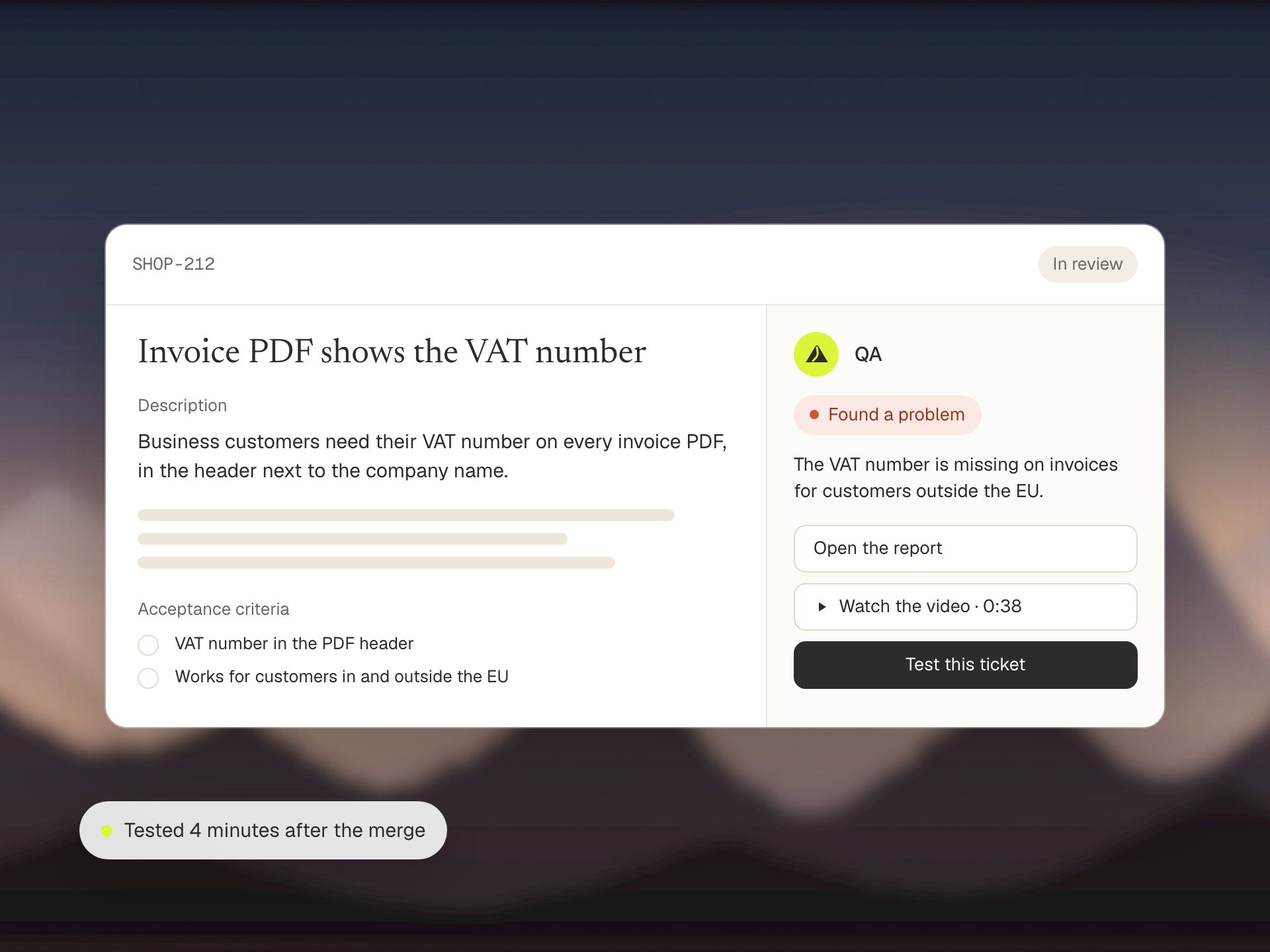
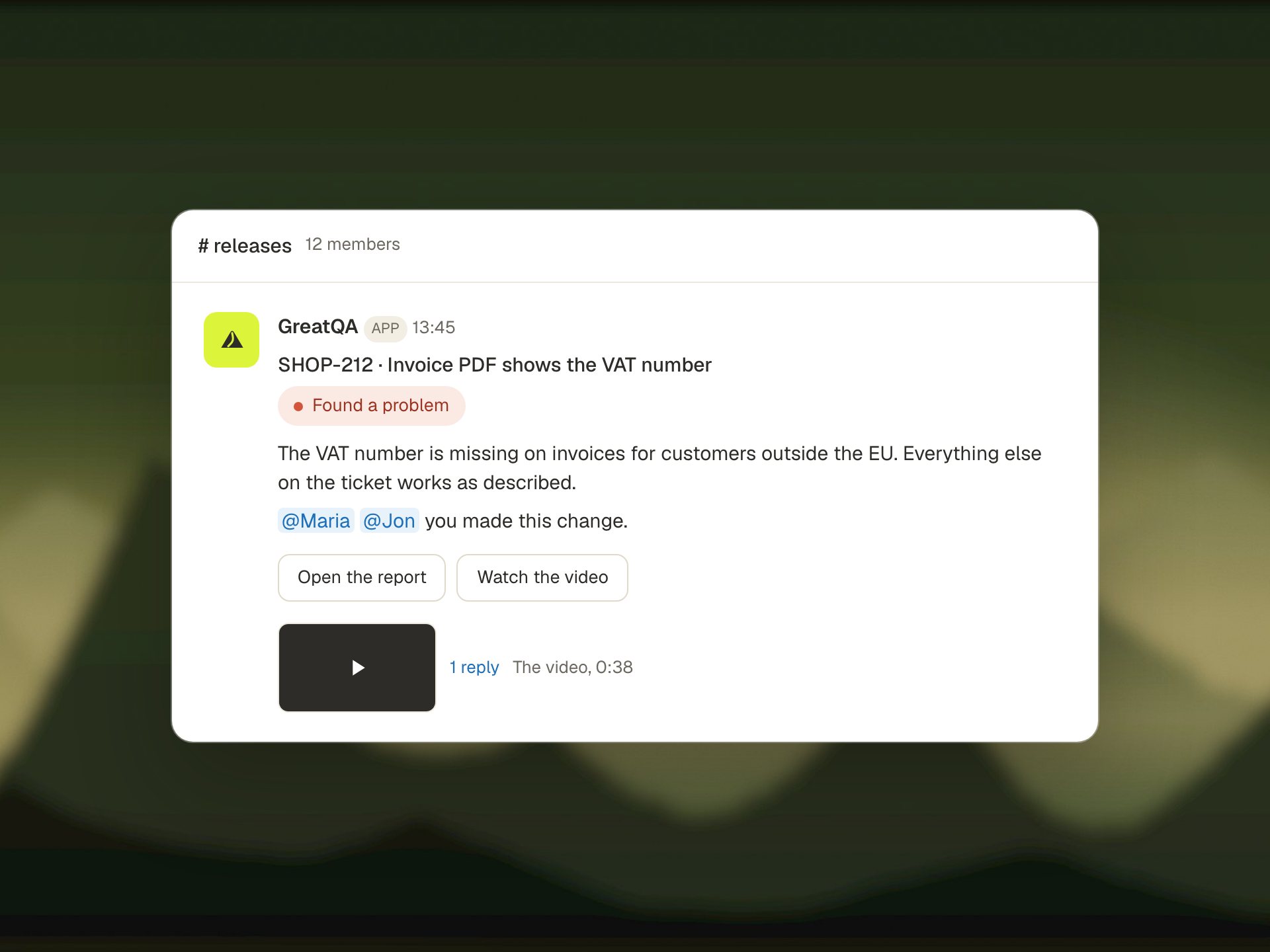
Try the preview: install the app on your Jira site, connect your Slack, and press Test this ticket on any ticket. The result lands on the ticket and in your Slack channel, with screenshots and a short video.
You need to be a Jira site admin to install it. Installing is free. The preview works from the ticket alone. Teams who sign up get the full setup.
From install to first report in about 20 minutes
When we tried it as a brand new team, setup took about 5 minutes and the result reached Slack about 14 minutes after pressing the button.
Install it
Open the install link, pick your Jira site and approve. This happens on Atlassian's own install page.
Tell it about your app
In Jira settings, Apps, open the app's page. Add the address of your staging or live site, a test login, and any notes on how to test your app.
Connect Slack
Press Connect Slack and pick a channel in Slack's own window. Results get posted there, with the video in the thread.
Press Test this ticket
On any ticket, in the panel on the right. It reads the ticket, tests your site in a real browser and reports back on the ticket and in Slack.
We switch every new team on ourselves
Anyone can install the app, but a new Jira site starts switched off. Settings and Connect Slack work straight away. We switch your team on personally, usually within one working day, and the Test this ticket button tells you so until then.
Want to start sooner? Book a demo.
Or let it test tickets as they move
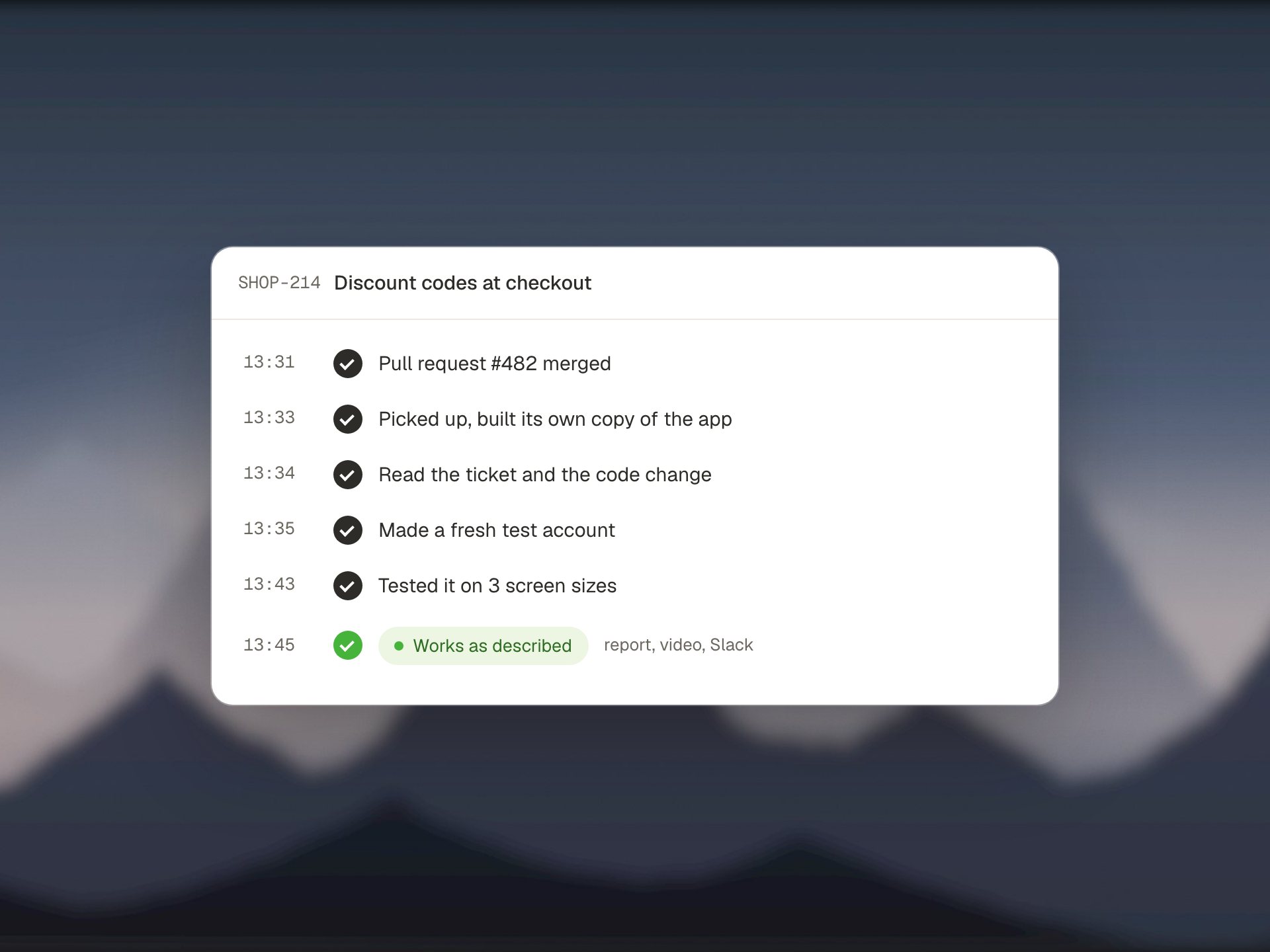
In the settings you can pick a status, for example Done or Ready for QA. When a ticket moves there, it tests that ticket by itself. If your team moves tickets when their pull request is merged, by hand or with a Jira automation rule, every merged change gets tested.
The preview works from the ticket. The full setup knows your whole product.
The more context your QA employee has, the better it tests. Teams who sign up get it set up with us after a demo, and connected to much more.
The previewThis app
- Reads the ticket's title, description and recent comments
- Tests the site you point it at, with your test login
- Posts the result on the ticket and in your Slack
- Never sees your code
The full setup
Everything in the preview, plus:
- Your code, if you want. It sees exactly what a change touched, so it tests the right pages and conditions, and points to the file and line behind each problem.
- Screen recordings on your tickets, like Loom videos, so it watches how the feature should work.
- Your Confluence pages and specs, and its own earlier reports on the same ticket.
- Your other tools: pull requests, your test case manager, error monitoring and more. See integrations.
Your code stays yours
Code access is optional and read only, for the repositories you choose. Your QA employee reads it during a test, from a temporary copy that's deleted when the test ends. Nobody at GreatQA looks at your code, and we don't keep it or use it for anything else.
What the preview app can do
The app asks Atlassian for three permissions. Here they are, and what we use each one for.
read:jira-workRead the ticket being tested
When a test runs, it reads that ticket's title, description and recent comments, so it knows what to check.
write:jira-workPost the result on that ticket
One comment with every check it made, the screenshots and the short video as attachments, and the latest result for the panel on the ticket.
read:app-system-tokenAct as the app, never as a person
Our server works with a short lived access token from Atlassian that belongs to the app, not to any of your people. It expires within 4 hours.
Jira also tells the app when a ticket is updated, so it can test the tickets that move to the status you picked. It reads a ticket in full only when it tests it.
SlackPost in the one channel you pick
If you connect Slack, it can post messages and the video in the channel you chose in Slack's own window, and join that channel. Disconnecting Slack in the app settings deletes our access.
Your data stays yours
We keep only what the app needs to run your tests, on our server in Germany. It's all in our privacy policy.
What we keep
- Your Jira site address and the IDs Atlassian sends
- The settings your admin enters: the site to test, the test logins and your notes. Passwords are never shown again after saving.
- For each test: the ticket key, who pressed the button, when it ran, the result and links to it
- Your Slack workspace and channel, if you connect it
What we don't do
- We don't read a ticket in full unless we're testing it.
- We don't sell your data. We only use the service providers needed to run it, like hosting and the AI that powers the tests.
- The preview never sees your code. It tests the site you point it at, like a person with a browser.
- It never acts as one of your people.
Questions
Who can install it?
A Jira site admin. If that isn't you, send this page to your Jira admin.
What does it cost?
Installing the app is free. Every team gets its own price after a demo; see pricing.
Should I point it at my live site?
A staging or test copy is best. It tests like a careful person, so it signs in, fills in forms and can create test records such as orders or accounts. Use a test login, never a real customer's.
Where do the screenshots and video go?
Onto the ticket as attachments, and into your Slack channel if you connected it. The test itself runs on our own computer.
How do I remove it?
Uninstall it from Jira settings, Apps, Manage apps. We keep records while the app is installed. After you uninstall, email [email protected] and we delete everything we hold for your site within 30 days.
Is there a Bitbucket app?
Yes, it's on the way: it tests every merged pull request and posts the result on it. Book a demo if you'd like to try it early.
You build the product.
Your QA employee checks it.
Show us your app. We'll run GreatQA on a real change of yours, live on the call.